
1. Introduction
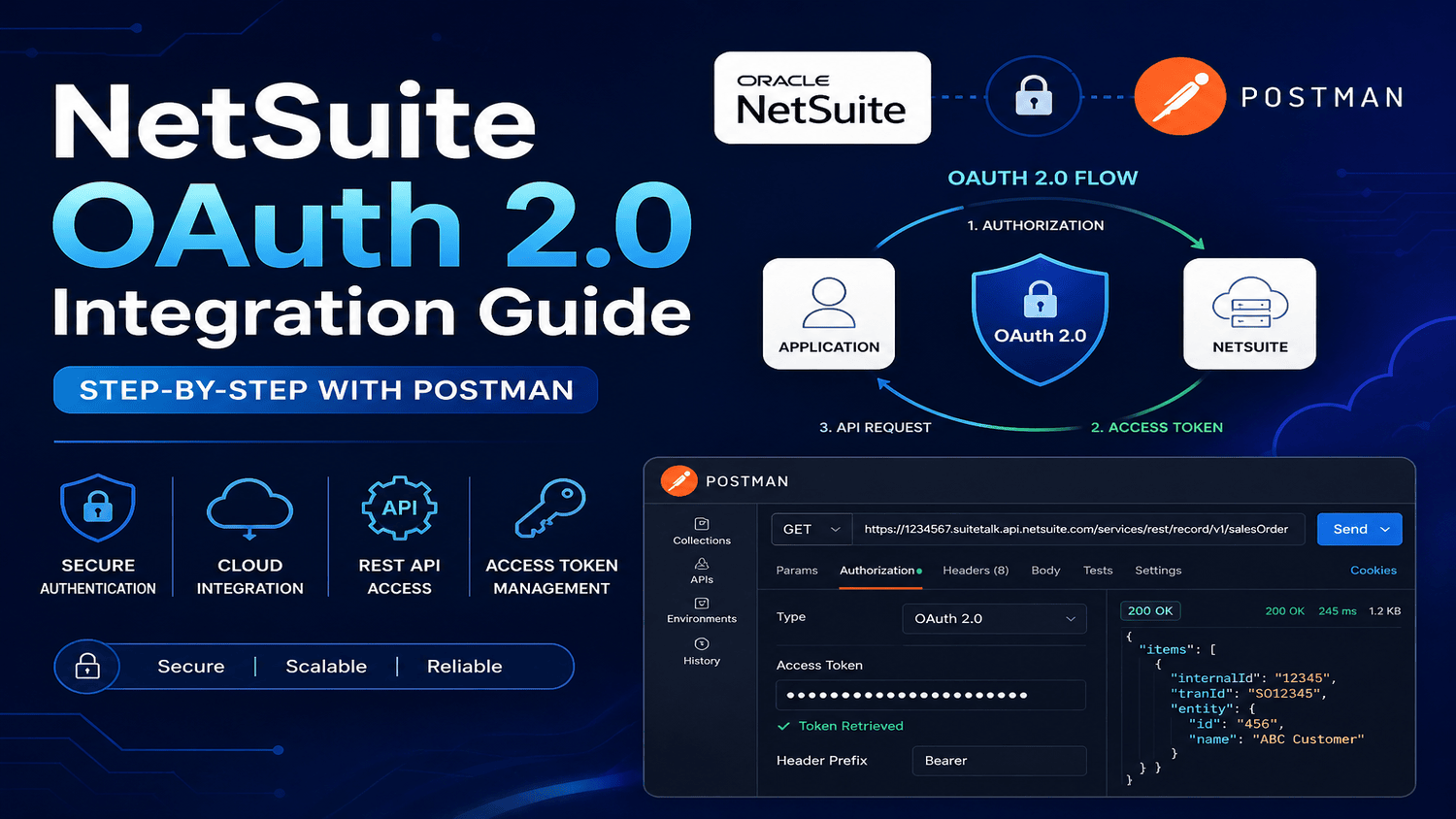
This document provides a complete step-by-step guide to configure OAuth 2.0 authentication in NetSuite and generate an Access Token using Postman.
OAuth 2.0 is a secure authorization framework that allows external applications to access NetSuite APIs without exposing user credentials.
2. Prerequisites
Before starting, ensure the following:
- NetSuite account (Sandbox recommended)
- Administrator or required permissions
- Postman installed
- Browser (Chrome recommended, popups enabled)
- NetSuite Account ID
3. Enable Features in NetSuite
Navigate to: Setup → Company → Enable Features → SuiteCloud
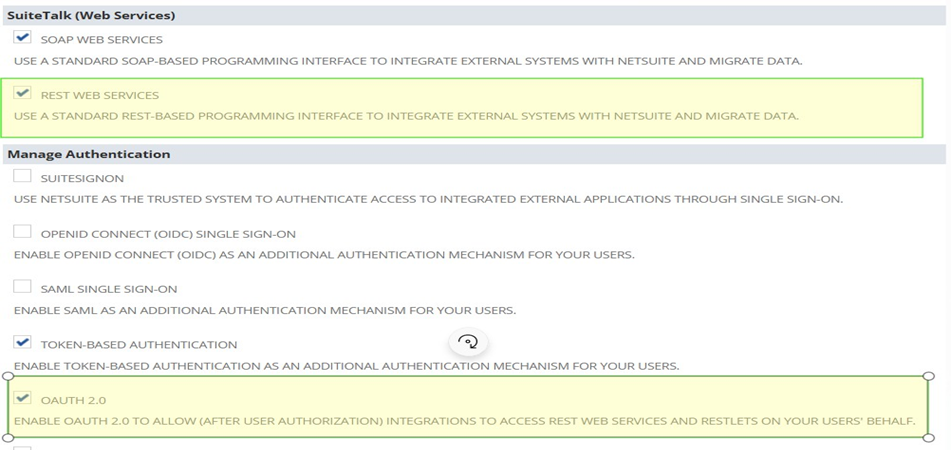
- REST Web Services
- OAuth 2.0 Click Save
4. Create Integration Record
Navigate to: Setup → Integration → Manage Integrations → New
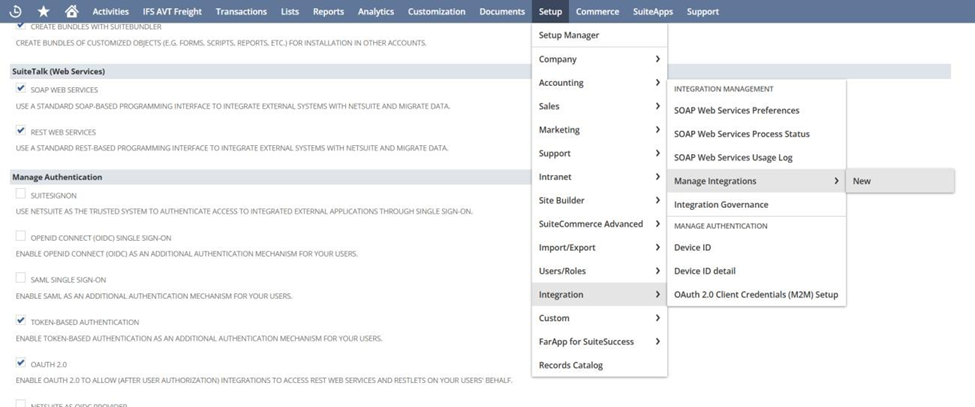
Fill the following details:
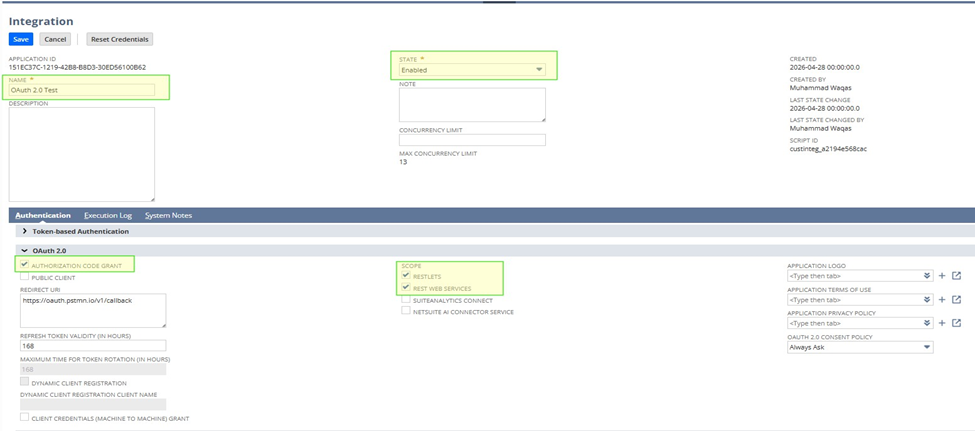
- Name: OAuth 2.0 Test
- State: Enabled
· OAuth 2.0 Authorization Code Grant: Enabled
- REST Web Services: Enabled
- RESTlets: Enabled
- Redirect URL: https://oauth.pstmn.io/v1/callback
Click Save
Important
After saving, you will receive:
- Client ID
- Client Secret
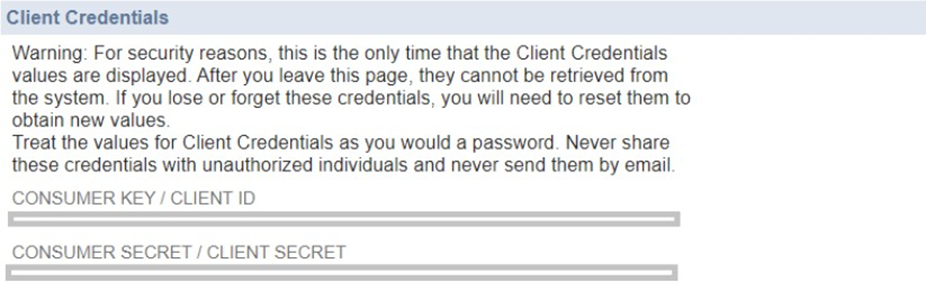
Save these securely (they are shown only once)
5. Role & Permissions Setup
Navigate to: Setup → Users/Roles → Manage Roles
Create or update a role with:
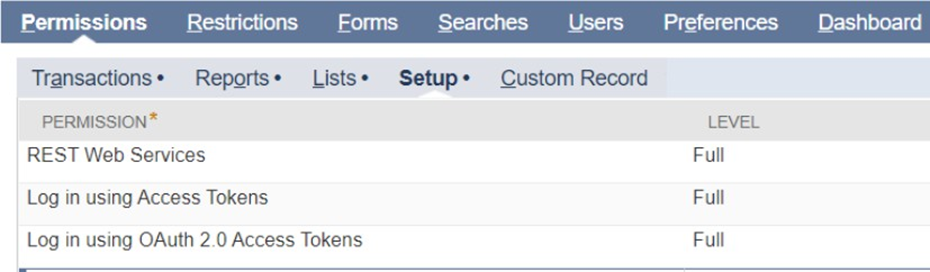
- REST Web Services → Full
- Log in using Access Tokens → Full
- Log in using OAuth 2.0 Access Tokens → Full Assign this role to your user.
6. Postman Configuration
Open Postman and create a new request.
- Go to Authorization Tab
- Auth Type: OAuth 2.0
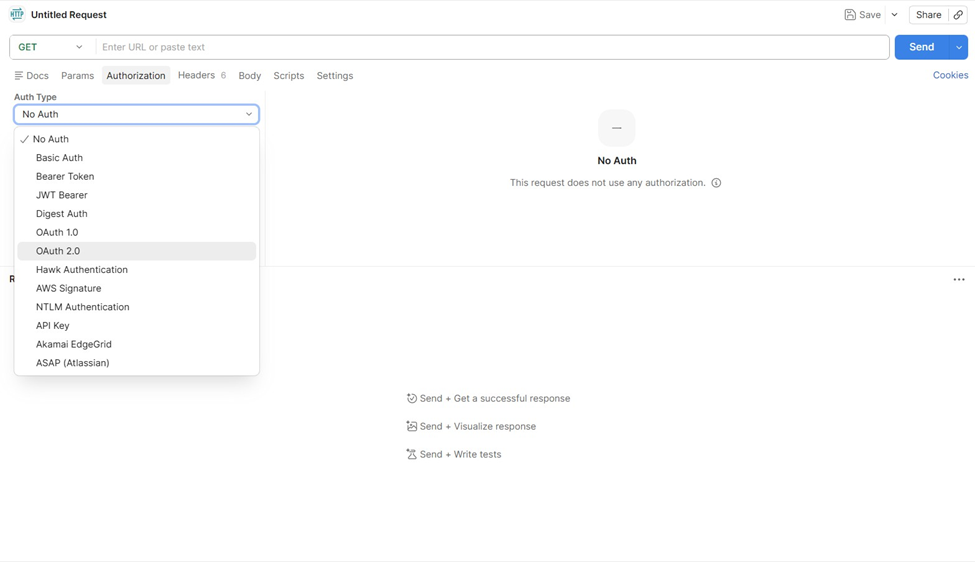
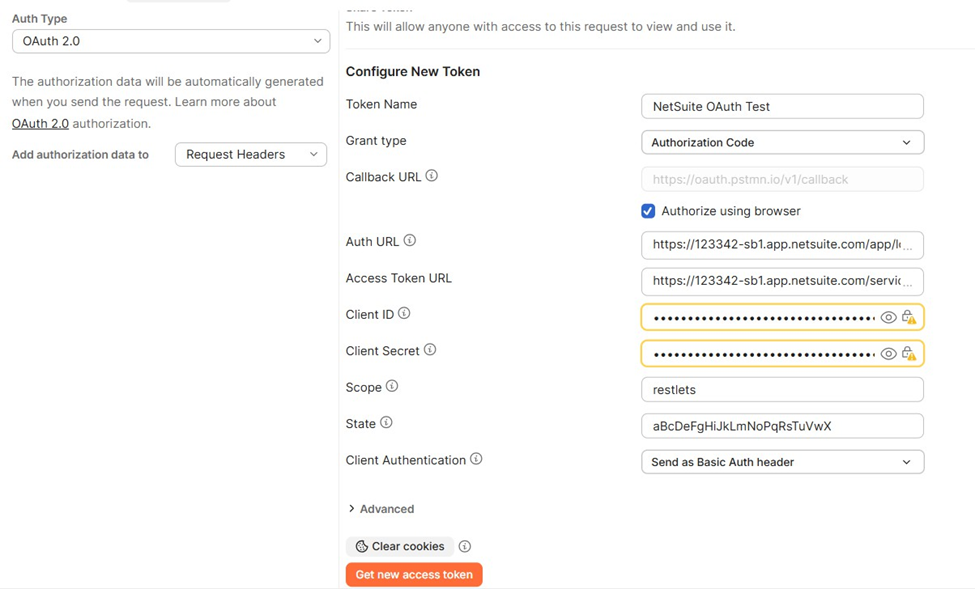
OAuth 2.0 Configuration (we can fill this info by 2 ways) Fill the following:
- Token Name: NetSuite OAuth Test
- Grant Type: Authorization Code
- Callback URL: https://oauth.pstmn.io/v1/callback
- Auth URL: https://ACCOUNT_ID.app.netsuite.com/app/login/oauth2/authorize.nl
· Access Token URL:
- Client ID: (From NetSuite)
- Client Secret: (From NetSuite)
- Scope: rest_webservices or restlets
- Client Authentication: Send as Basic Auth header
Way 1: (simple)
Way 2: (recommended)
Best practice is making new Environment and save configure new token details into variables
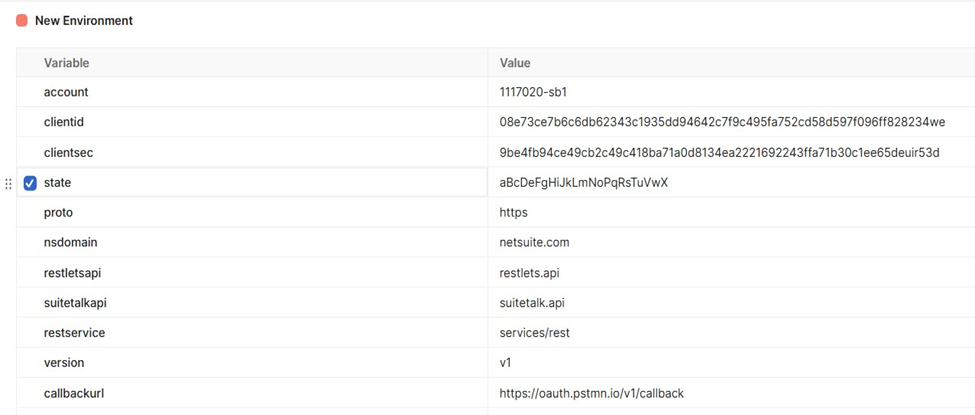
Now use these variables into Configure New Token.
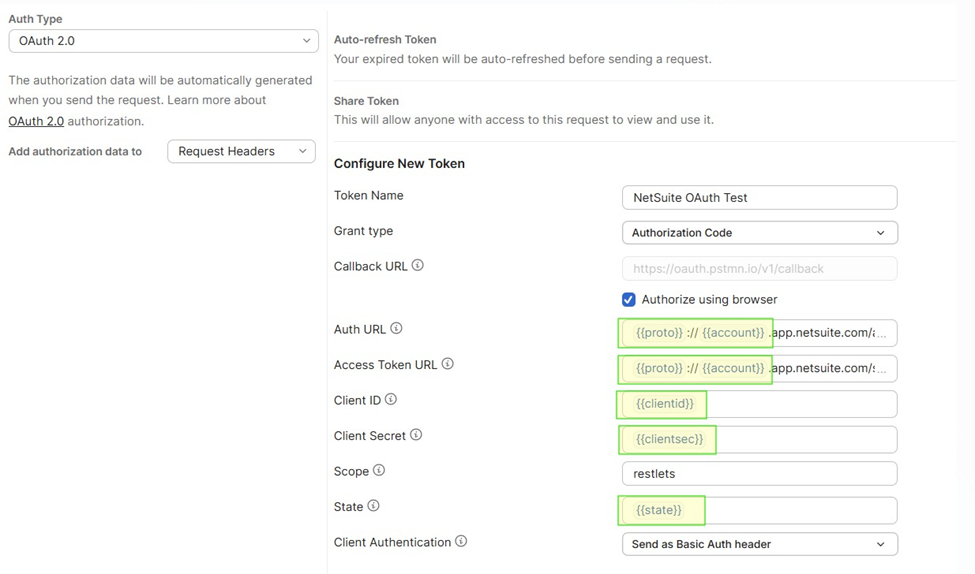
- Generate Access Token (Follow these steps)
- Click Get New Access Token
- Browser window will open
- Login to NetSuite
- Select your assigned role
- Click Allow / Continue
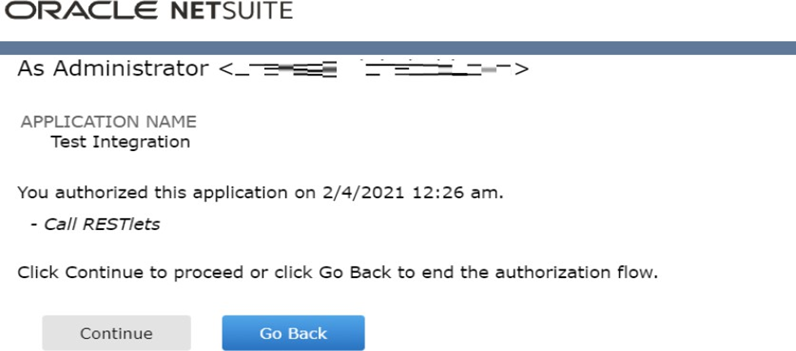
- Token will be generated
- Click Use Token
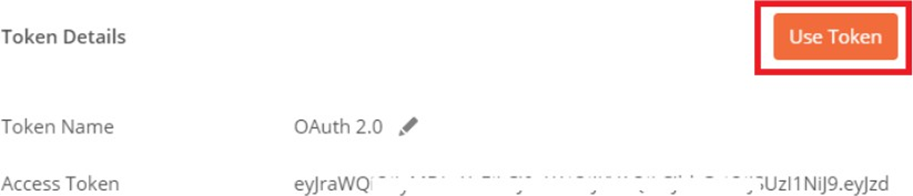
- Tokens will be automatically added under the current token.
8. Test API (now make a testing restlets)
Example request: Get 2 Sales Order by Postman
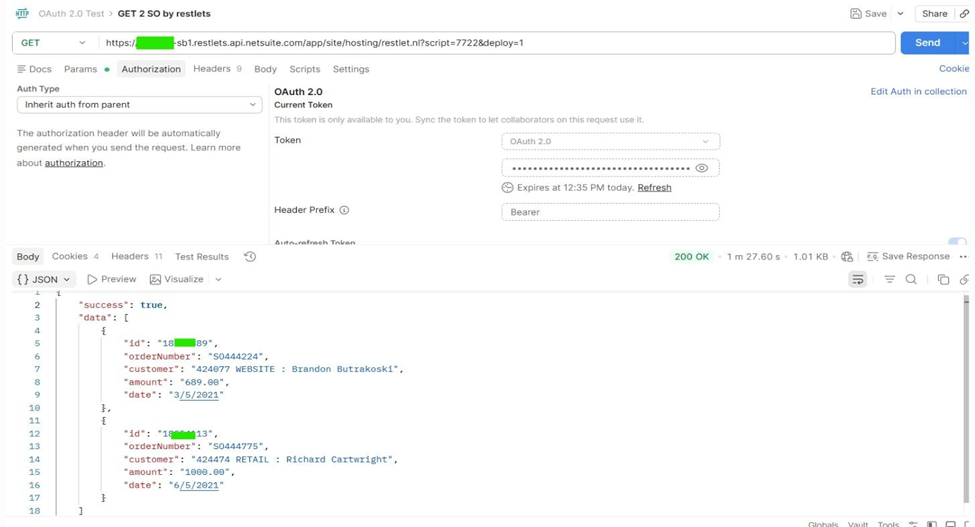
Note-1: 1ST Deploy restlets then use its External URL into Postman (result show as you can see on screen shoot)
Note-2:
- Access Token validity: ~60 minutes
- Refresh Token validity: ~7 days Regenerate token when expired.
Conclusion
You have successfully:
- Configured NetSuite OAuth 2.0
- Created Integration RecordGenerated Access Token via Postman
- Tested API connectivity
This setup enables secure communication between external applications and NetSuite.