
Purpose
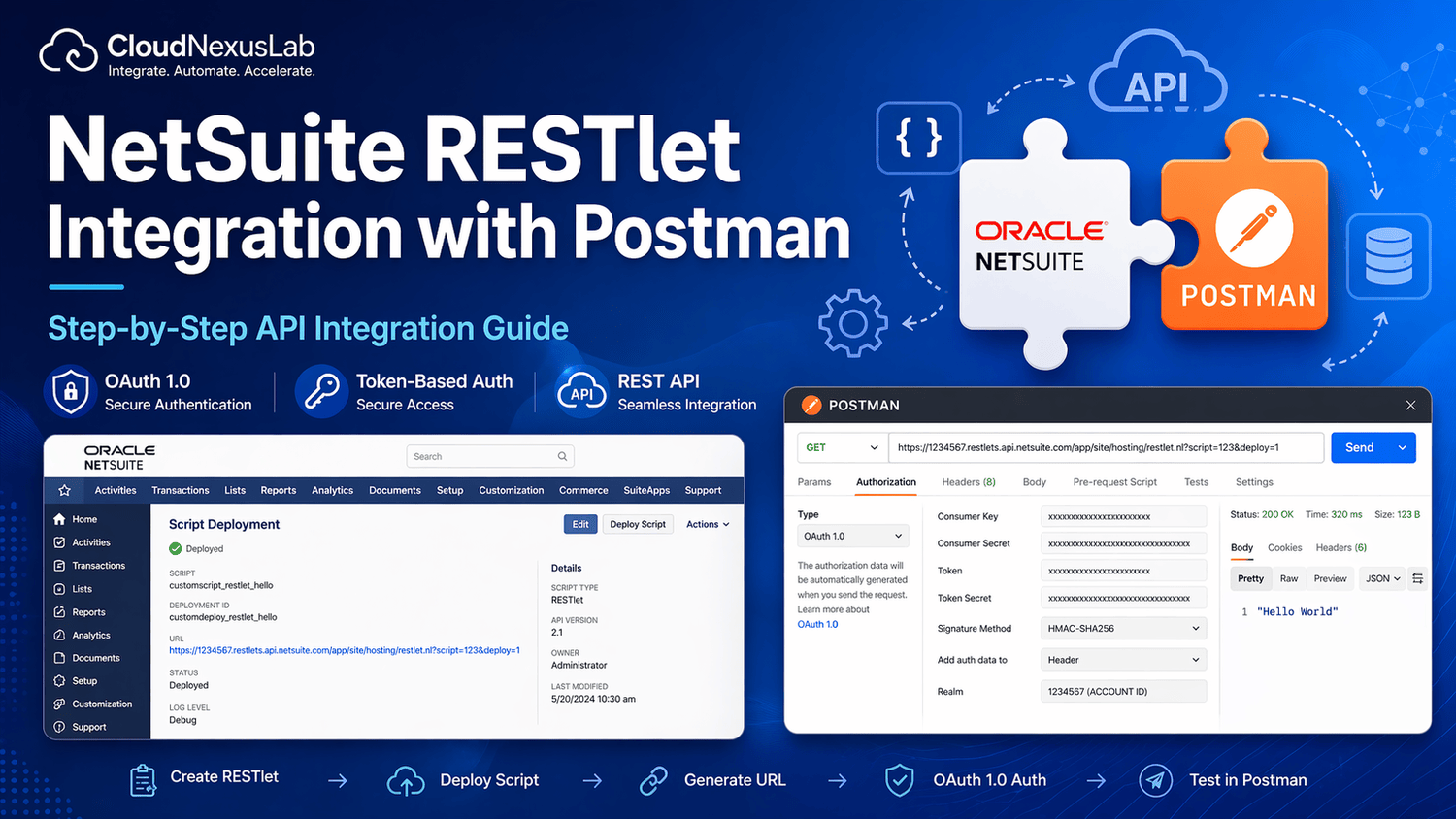
This document provides a step-by-step guide to:
- Create and deploy a RESTlet script in NetSuite
- Generate an external URL for integration
- Configure secure authentication using OAuth 1.0
- Test the RESTlet using Postman
Prerequisites
Before starting, make sure you have:
- Visual Studio Code (VS Code)
- NetSuite account access
- Basic understanding of APIs
- Postman installed
Step 1: Create RESTlet Script in VS Code
Create a new JavaScript file in VS Code and add the following code:
/**
* @NApiVersion 2.1
* @NScriptType Restlet
*/
define([‘N/log’], (log) => {
const getHelloWorld() => {
log.debug(‘Get method triggered’);
return “Hello World”
};
return {
get: getHelloWorld
};
});
Save the file (e.g., restlet.js).
Step 2: Upload Script into NetSuite
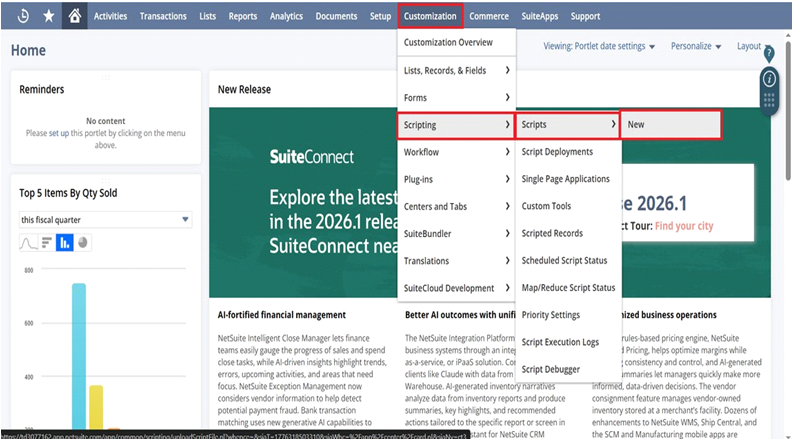
Navigate to: Customization > Scripting > Scripts > New
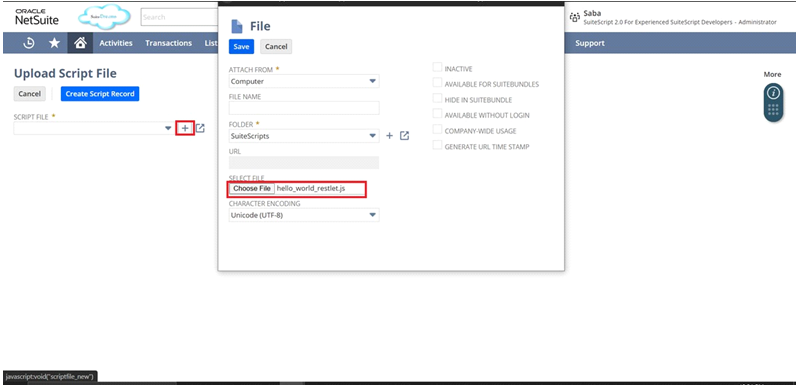
Upload your .js file and save the script record
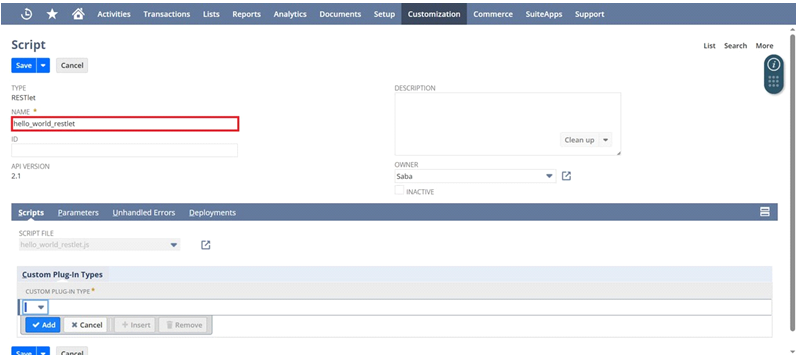
- After save go to create script record button
- Give any name your script and save
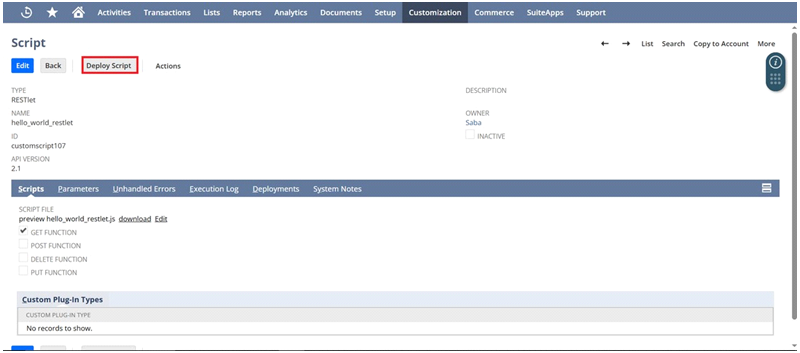
Step 3: Deploy the Script
Go to Deploy Script
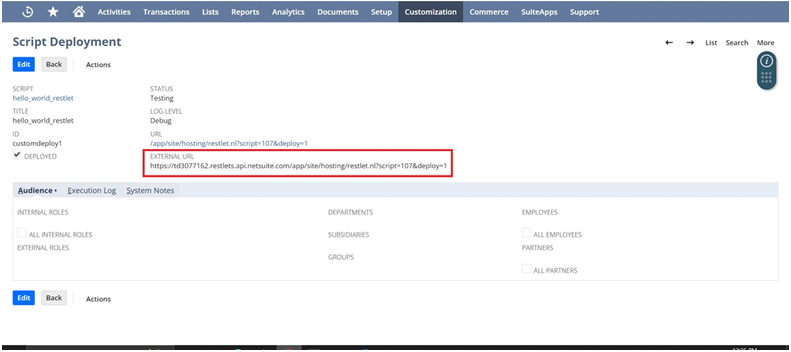
Step 4: Generate External URL
- After deployment,
- An external RESTlet URL is generated
- Copy this URL
- Save it in Notepad or Notes
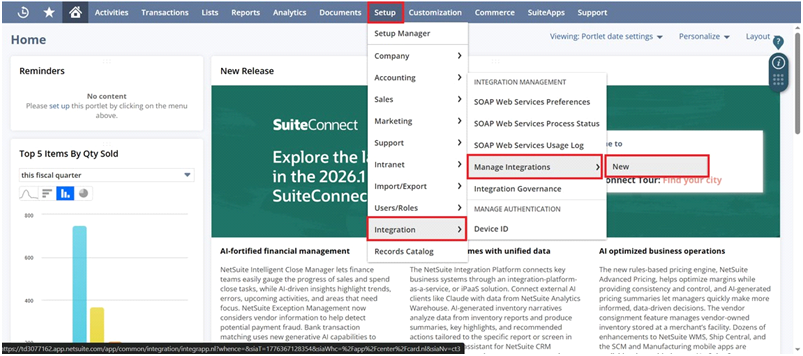
Step 5: Create Integration in NetSuite
Navigate to: Integration > Mange Integration > New
Give any name
Enable Token-Based Authentication
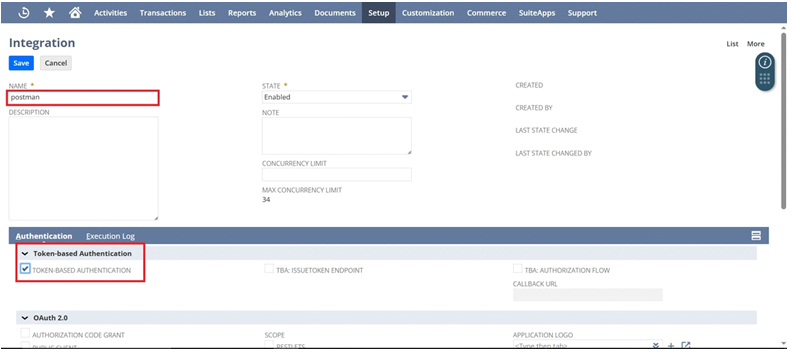
After saving the integration record you will receive:
- Consumer key
- Consumer secret
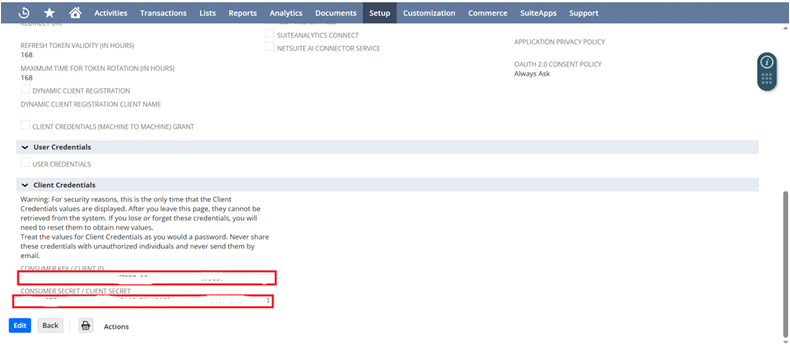
Important: Save these in a notepad immediately. They will only be displayed once!
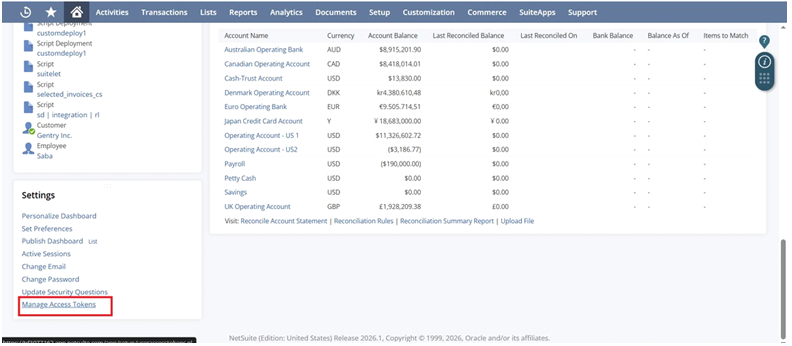
Step 6: Generate Access Tokens
Navigate to: Home > Settings > Manage Access Tokens
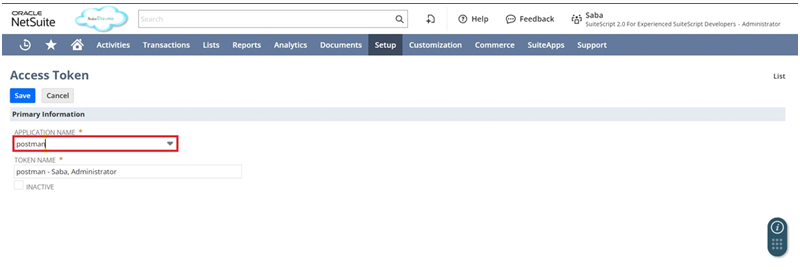
Select your Integration
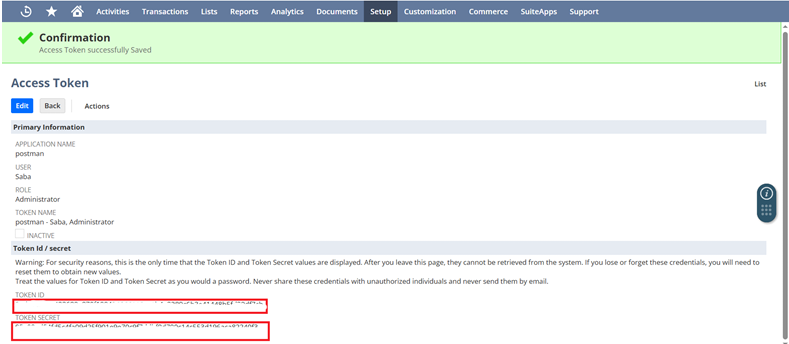
Step 7: Save Token Credentials
Just like the consumer keys, the Token ID and Token Secret are only shown once. Copy them to your secure notepad.
Step 8: Get NetSuite Account ID
Find your Account ID, look at the beginning of your NetSuite URL
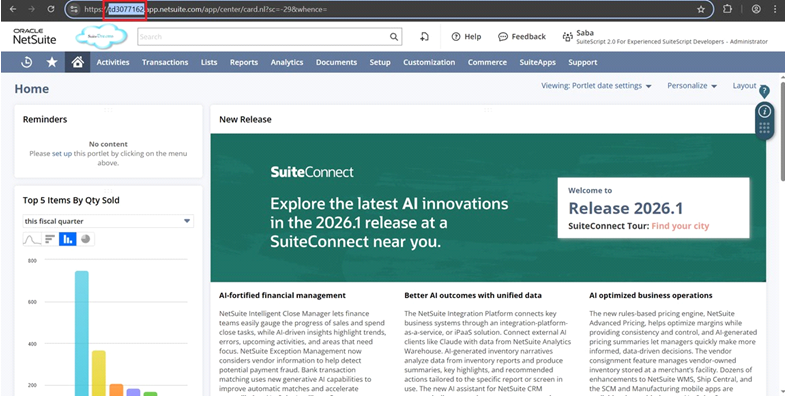
Step 9: Setup Request in Postman
- Open Postman
- Create a new request
- Select GET method
- Paste the external URL
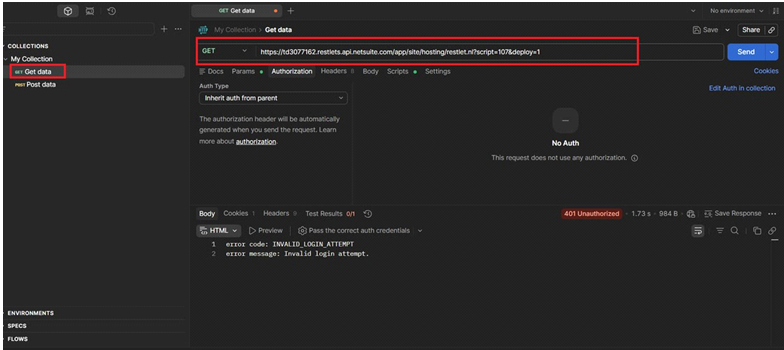
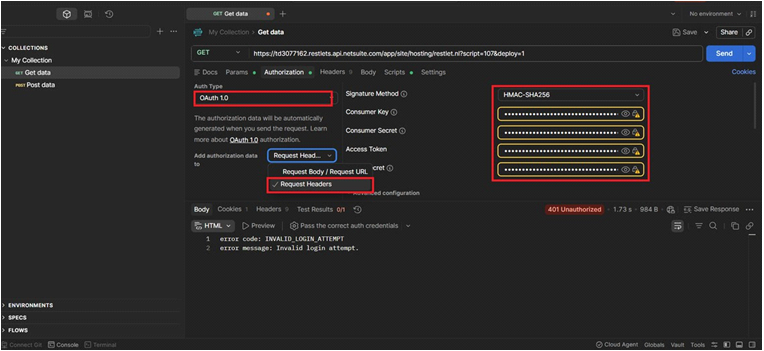
Step 10: Configure OAuth 1.0 in Postman
Go to Authorization tab Select OAuth 1.0
Enter:
- Consumer Key Consumer Secret Token ID
- Token Secret
Settings:
- Signature Method: HMAC-SHA256
- Add data to: Header
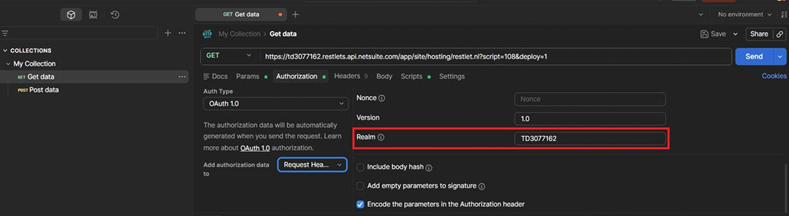
Step 11: Realm
Scroll-down in Realm field, enter your NetSuite Account ID (use Capital Letters)
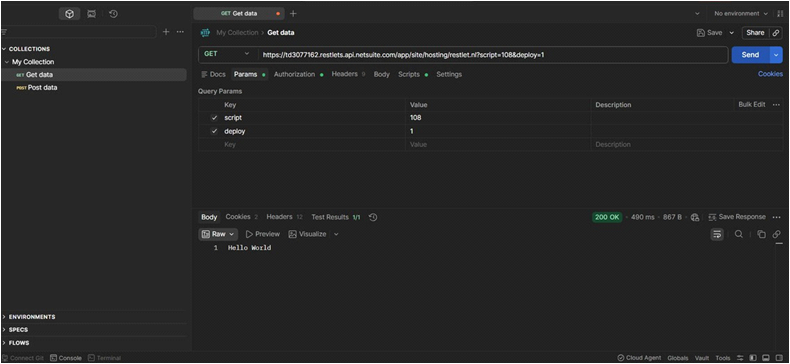
Step 12: Send Request
- Click Send Expected Result: Status: 200 OK
- Response: “Hello World”
Error Handling
- If you get a 400 error,
- check: Incorrect keys
- Wrong Account ID
- OAuth configuration issue
- Token mismatch